Welcome to Mediabriz for Genesys Cloud.
This guide explains how to activate and configure Mediabriz after installing it from the Genesys AppFoundry.
The setup process only takes a few minutes.
Step 1 - Install Mediabriz from Genesys AppFoundry
Install Mediabriz from the Genesys AppFoundry using the standard installation flow.
During the process:
- Approve the installation
- Review the post-activation message
- Complete the installation
Once completed, the MediaBriz integration is automatically created inside your Genesys Cloud organization.
Important:
The integration is initially created as Inactive and requires additional configuration before users can access Mediabriz.
Step 2 - Configure the MediaBriz Integration
After the installation completes, you will be taken to the:
MediaBriz integration page
(IT and Integrations → Integrations → MediaBriz)
Configure the integration using the following steps.
Assign the Required Permission
Inside the integration:
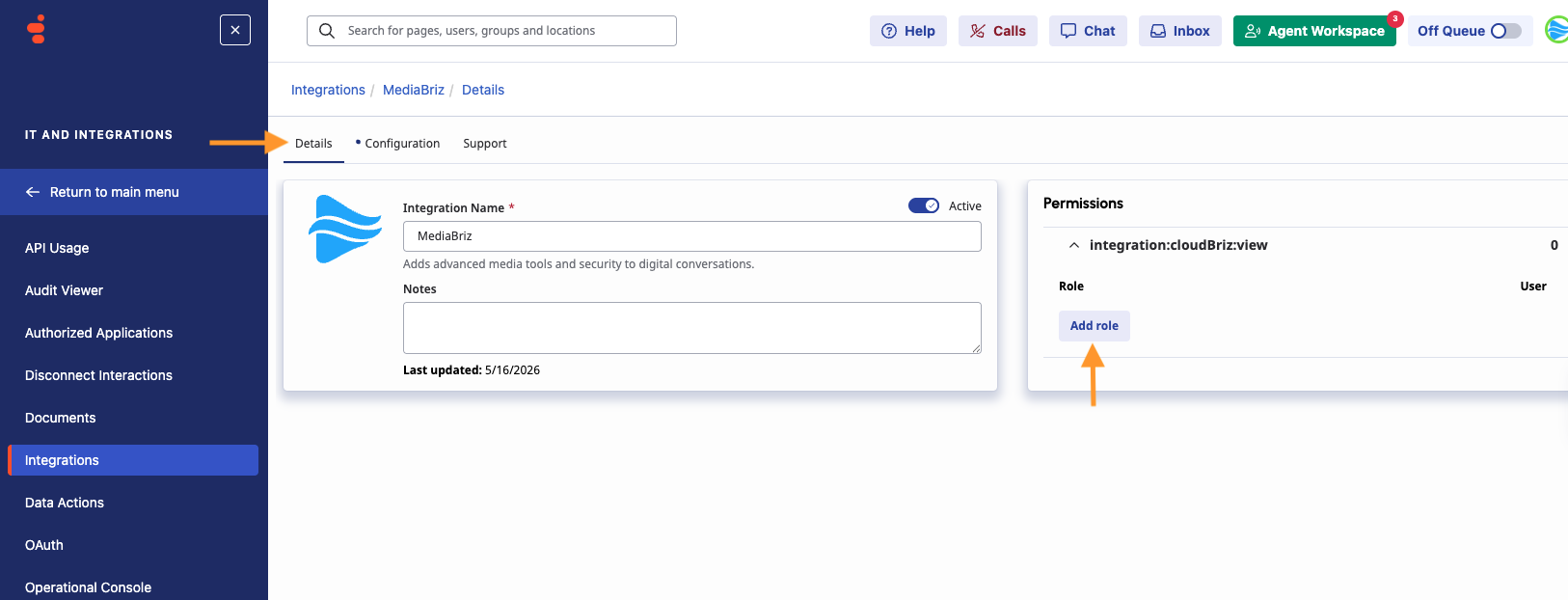
Go to:
Details → Permissions
Locate the permission:
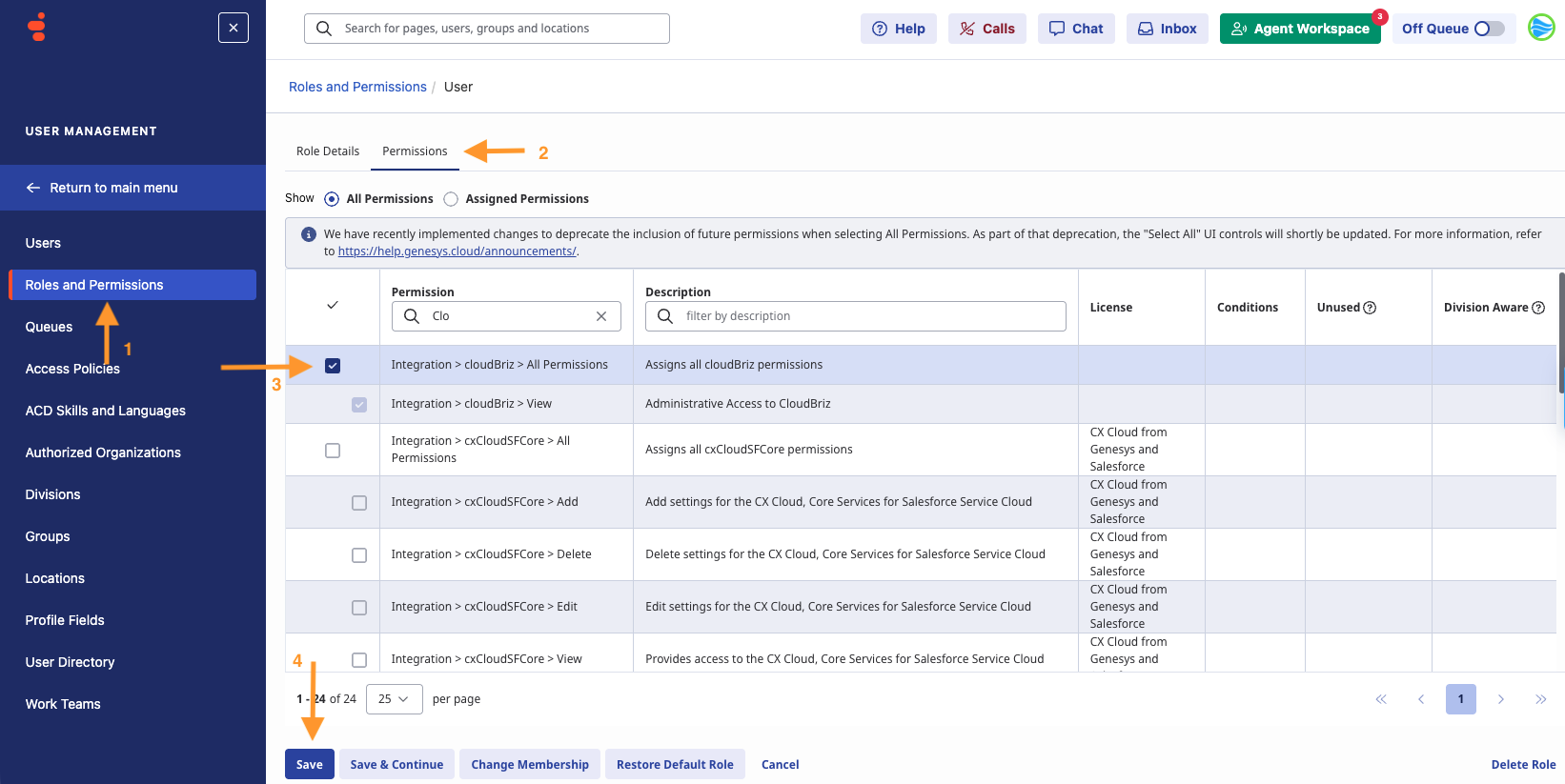
integration:cloudBriz:view
Add this permission to an existing or new role. Assign the role to the user running the setup wizard and to any users who need access to Mediabriz Insights.
 Important:
Genesys does not automatically assign this permission to administrators.
It must be granted manually.
Configure Group Filtering
Return to the MediaBriz integration, then go to:
Configuration → Properties → Group Filtering
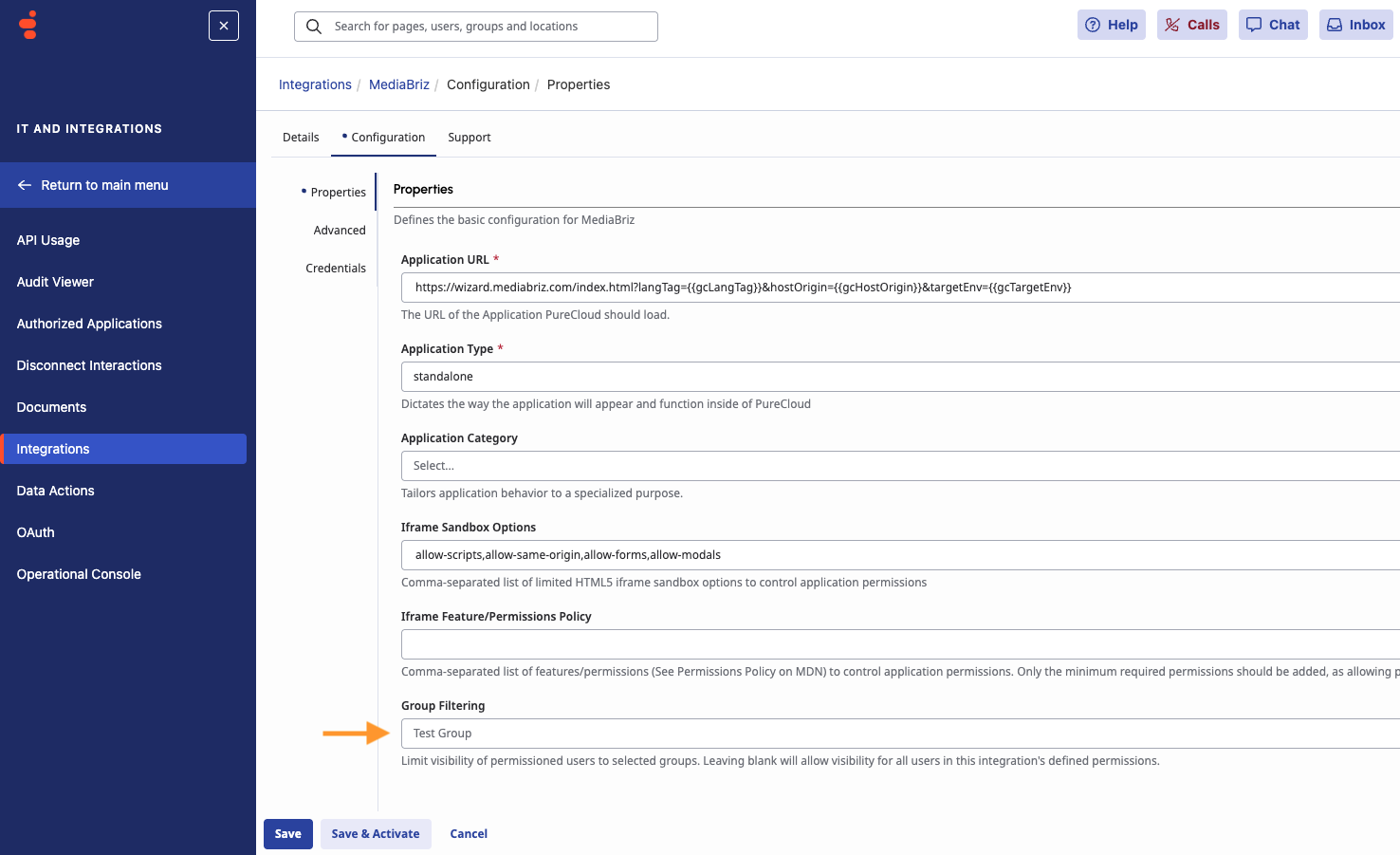
Select an existing group, or create a new group in:
User Management → Groups
Then add:
- The user who will run the Mediabriz setup wizard or need acsses to Mediabriz global settings- this is required to complete the installation.
- Any additional users who need access to Mediabriz Insights after setup.
Make sure the required Mediabriz role is also assigned to any additional users who need access to Mediabriz Insights.
Optional Agent Permission
externalContacts:contact:view - Required only for organizations using External Contacts and for agents who need to view External Contact details in the contact card.
Save and Activate the Integration
After completing the configuration:
- Save the integration
- Activate the integration
3. Refresh the Genesys Cloud page before continuing.
Step 3 - Launch the Quick Setup Wizard
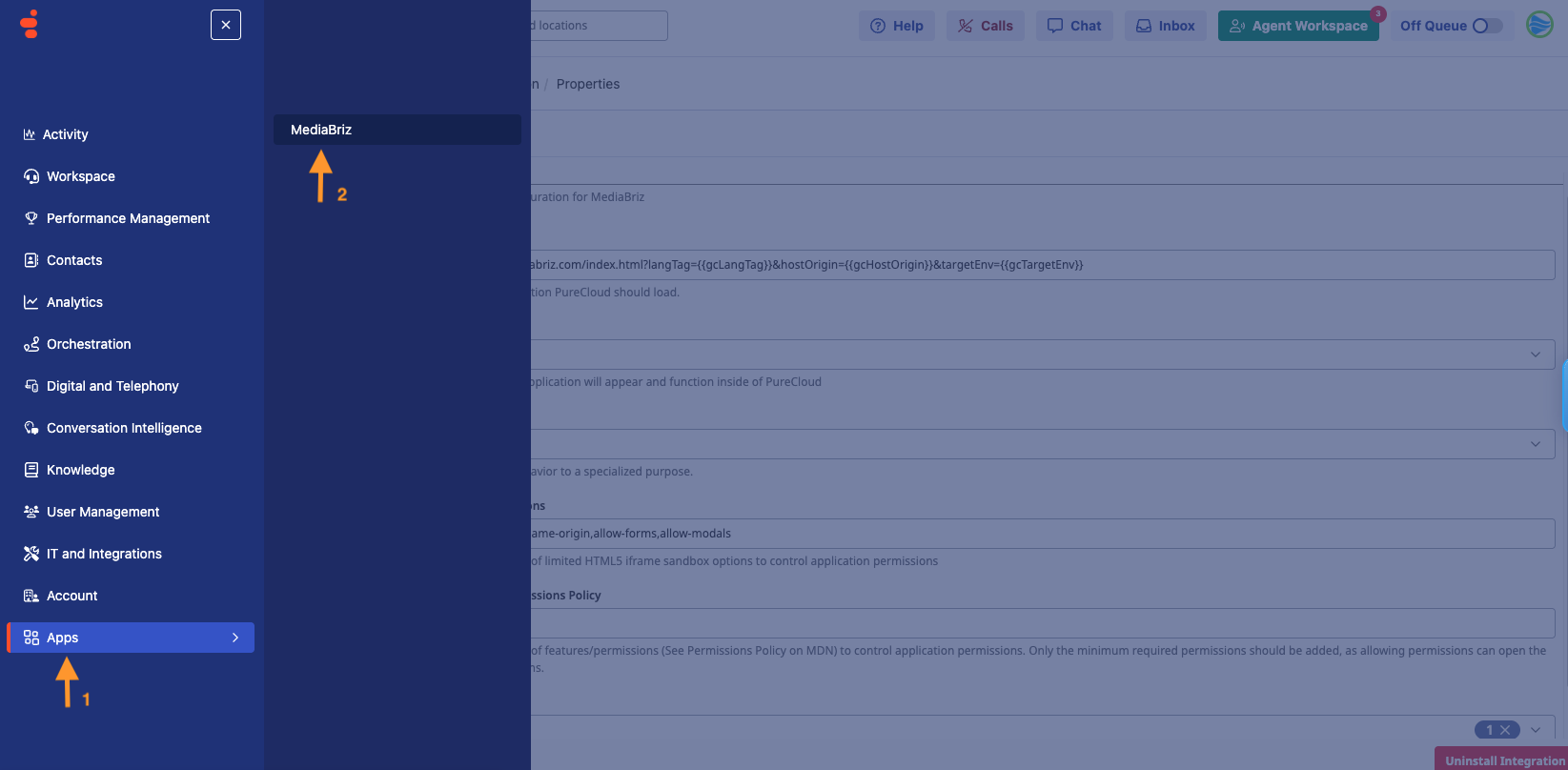
Open the Apps menu inside Genesys Cloud and click:
MediaBriz
This launches the Mediabriz quick setup wizard.
Required Genesys Permissions
The user running the setup wizard must also have these standard Genesys administrator permissions:
integrations:integration:viewoauth:client:viewoauth:client:addoauth:client:edit
These permissions are typically already included in the default Admin role.
Next, Install the Mediabriz extension.
Need Help?
Or visit the:

Was this article helpful?
That’s Great!
Thank you for your feedback
Sorry! We couldn't be helpful
Thank you for your feedback
Feedback sent
We appreciate your effort and will try to fix the article