Mediabriz Conversation Actions can help you create a return directly from a customer conversation.
When you run a return action, Mediabriz analyzes the conversation, identifies the products the customer wants to return, and prepares a return draft for you to review before sending it to your organization's system.
Start a return
- Open the customer conversation in Genesys Cloud.
- In Mediabriz, select Actions.
- Select the return action configured by your organization.
- Start the analysis.
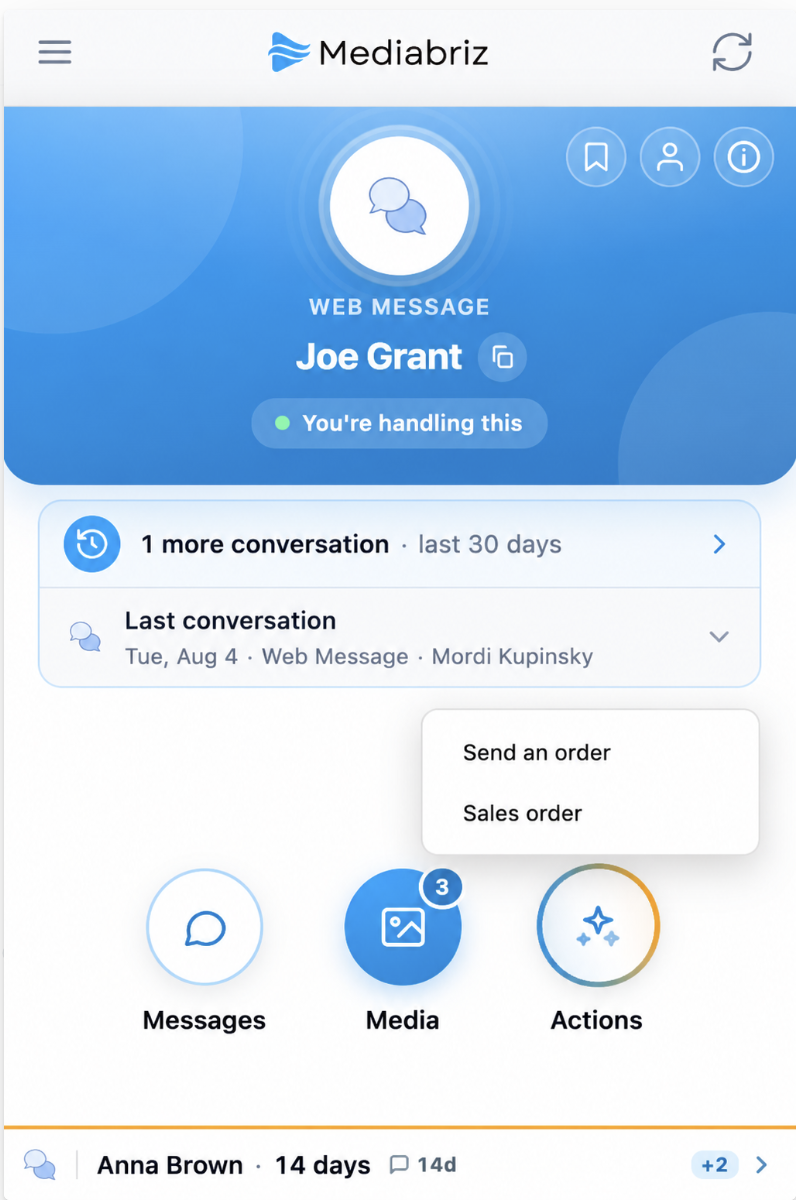
Mediabriz analyzes the conversation and prepares a return draft based on the products and information it identifies.
If the conversation includes supported files, such as a photo or a single-page PDF, you can include them in the analysis. This can be useful when, for example, the customer sends a photographed return list or document.
Review the returned items
Before sending the return, review the products and quantities identified by Mediabriz.
Each returned item can include a Reason, such as:
- Damaged
- Expired
- Wrong item
- Surplus
- Other
When available, you can also see the reason as described by the customer.
Depending on the conversation, Mediabriz may also identify a Reference, such as an invoice or delivery note number, and a Pickup date.
Items that require your attention are clearly marked. Review any open items and confirm or select the correct product before sending the return.
Review the return details
Your organization may configure additional fields for the return, such as a Requested outcome or other information required by your business process.
Some fields may be required and must be completed before the return can be sent.
Note: The return draft does not determine whether the customer receives a credit, replacement, collection, or another outcome. If your organization records this information, it may appear as a custom field in the return details.
Send the return
Once you have reviewed the returned items and completed any required information, select Send return.
The return is sent to your organization's configured system only after you approve it.
If something still requires your attention, Mediabriz indicates what needs to be reviewed before the return can be sent.
If the conversation also contains an order
If Mediabriz identifies that the same conversation may also contain an order request, a notice appears in the return draft.
The notice is informational. To create the order, return to the conversation and select the appropriate action from Actions.
Was this article helpful?
That’s Great!
Thank you for your feedback
Sorry! We couldn't be helpful
Thank you for your feedback
Feedback sent
We appreciate your effort and will try to fix the article