AI Reply suggests text in the Mediabriz reply box. Always review it, edit if needed, and select Send. Nothing is sent automatically.
Send AI Reply
In Live Conversations, select Preview latest messages to open the Latest messages card. You can also select Messages on the conversation to reply below its message history. AI Reply is the first tool under the reply box, before Translate.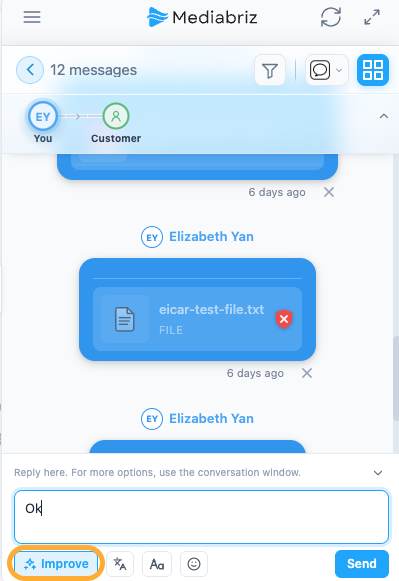
Draft or improve a reply
- With an empty box, select Draft to suggest a reply from the conversation.
- Read the suggestion marked Review before sending. Use Undo to restore your previous text or Try again for another version. Review and edit, then select Send.
To improve your own reply, type your text and select Improve. Improve only corrects your own text: typos, grammar, tone and language. It does not add sentences or greetings, except a short apology when the customer has waited a long time. Review the rewritten reply before selecting Send.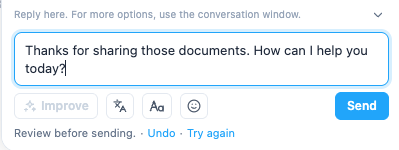
Replies use the customer's language when clear, otherwise the language your administrator chose. You can type your note in your own language. To translate your text, select Translate. You don't need to click in the box first.
Notes under the reply box
After AI Reply writes a reply, notes may appear under the box, in the Latest messages card and below the message history. They stay until you edit or send the reply.
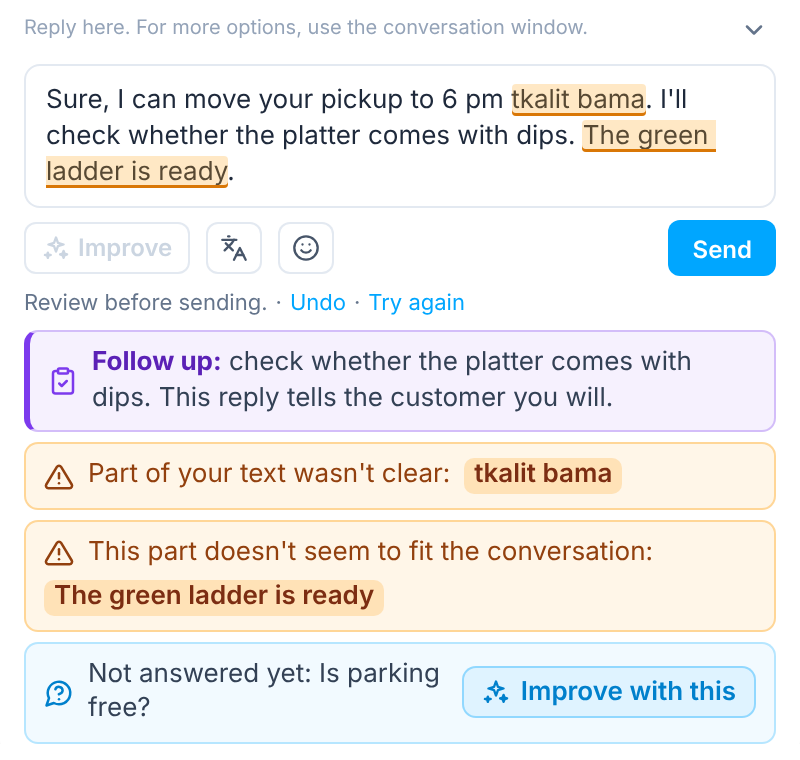
- Part of your text wasn't clear: AI Reply couldn't read these words, so it kept them as you typed them.
- This part doesn't seem to fit the conversation: these words don't seem to match the conversation. They are also kept as you typed them.
- Follow up: the reply tells the customer you will check something. Remember to do it.
- Not answered yet: the customer asked something the reply doesn't answer. Select Improve with this to add it, then review the reply again.
The words in the first two notes are also marked in the box. Select them in the note to find them in your text, then fix or delete them.
AI Reply on email
When email reply is enabled for your organization, Draft, Improve and Translate also work on email, wherever AI Reply is enabled for you.
- A new draft may greet the customer and sign off. It never invents a signature; Genesys Cloud attaches your email signature, if your organization uses one.
- It does not apologize for the wait, however long the customer waited.
- Older emails in the conversation are read as a short preview. The latest customer email is read in full, without the earlier emails it quotes. Each email's subject is read as well, only to understand the email. The reply does not repeat the subject, and the subject is not changed.
- Sending works like any email reply from Mediabriz: depending on your Genesys email settings, one reply can end the email, so review the whole reply before selecting Send.
Note:
AI Reply supports live web messaging, SMS, WhatsApp, Messenger, Instagram and Open Messaging conversations, and email when email reply is enabled for your organization.
If the button is missing, ask your administrator.
For basic sending instructions, see How do I reply to a customer from Mediabriz?
Was this article helpful?
That’s Great!
Thank you for your feedback
Sorry! We couldn't be helpful
Thank you for your feedback
Feedback sent
We appreciate your effort and will try to fix the article